Fix misspelled or garbled words in AI-generated JPG, PNG and WebP images. Enter the exact correction, match the existing lettering and keep the surrounding artwork without generating a new scene.
Drag and drop an image. Text is detected automatically.
PNG, JPG or WebP · up to 10 MB
No image handy?
Cafe graphics — before and after
Before-and-after examples of text replacement, translation, typo correction and removal.
AI-generated artwork
Spelling corrections
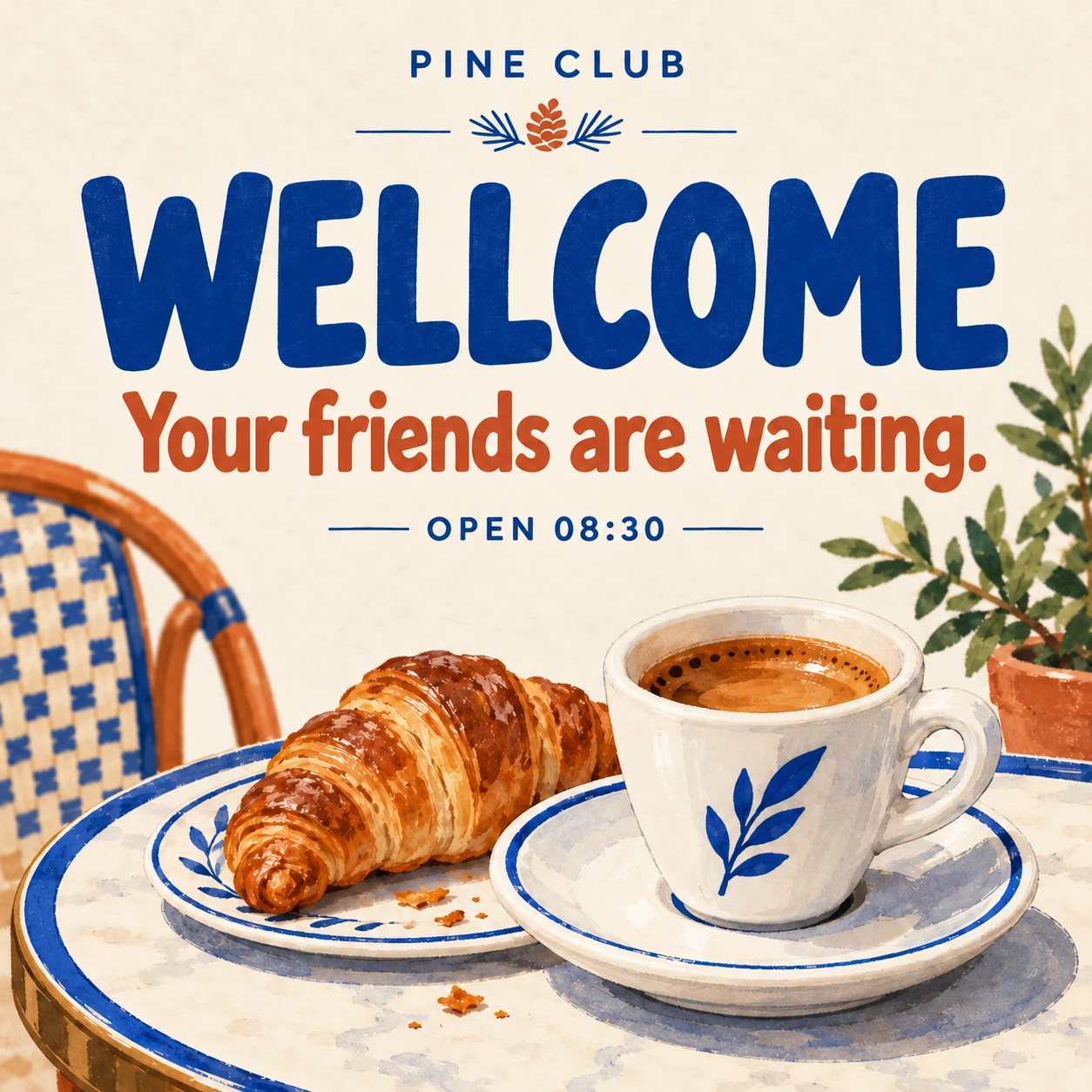
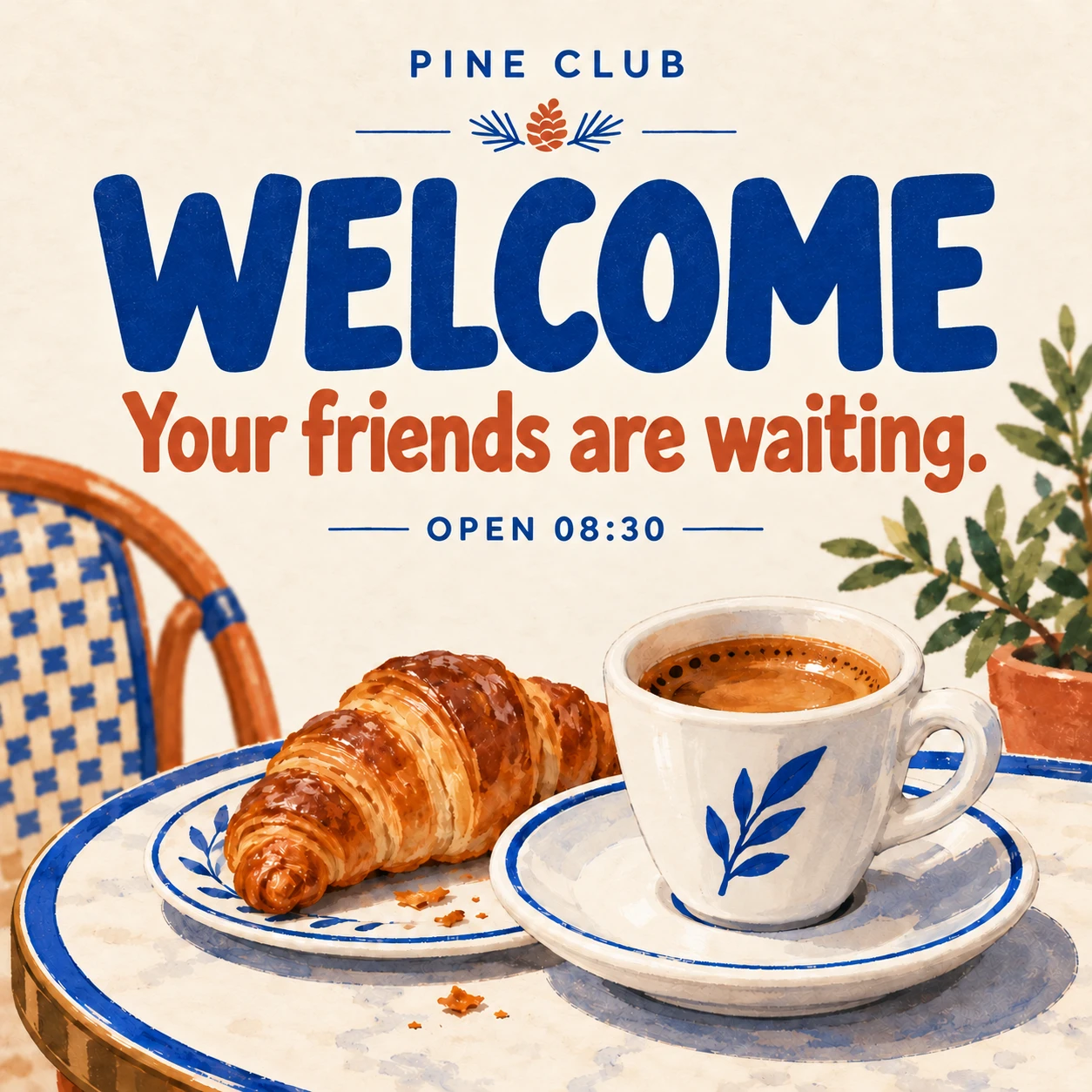
The illustration works. The spelling does not. Fix text in an AI-generated image without asking for a whole new scene. This cafe graphic changes WELLCOME to WELCOME while leaving the supporting sentence alone. Enter the exact correction or edit a suggested fix before generating. Fix text in AI images.
WELLCOME→WELCOME
BeforeAfter
Fix AI spelling mistakes in place.
Keep the picture, fix the spelling
A poster or illustration can look right while one word is wrong. Replace the problem lettering in place and keep the artwork outside your selection unchanged.
Control the exact wording
Use a suggested spelling correction or enter your own. Keep unusual brand names, names, dates and numbers exactly as you intend instead of relying on automatic correction.
Match the lettering already there
The image guides the corrected text’s style, size, color and alignment. Include outlines and shadows in the selection and compare the complete word before downloading.
From upload to finished image
How to fix text in an AI image
01
Upload and select text
Upload a JPG, PNG or WebP. Click detected words, or draw a box around the text you want to change.
02
Confirm the correct spelling
Select Suggest a correction, or type the exact replacement yourself. Check names and numbers before applying.
03
Compare and download
Apply your changes, compare the result with the original and download a full-size PNG without a watermark.
AI text correction FAQ
How do I fix misspelled text in an AI-generated image?+
Upload your artwork or try the typo example. Select the misspelled word, check Current text and select Suggest a correction. Review or type the exact wording, then apply the edit.
Do I need to generate the whole picture again?+
No. Only the selected areas are replaced. The surrounding artwork stays unchanged, so you can fix a word without starting the whole scene again.
Can I fix text from different image generators?+
Yes. Upload the finished JPG, PNG or static WebP rather than a project file. You do not need to connect the tool that created the image. The visible text and your replacement guide the edit.
What if the letters are too garbled for text detection?+
Draw a box around the lettering. Enter the visible wording in Current text where possible, then type the intended phrase in Review correction. You can enter your own replacement without using a suggestion.
Will the correction match the original text style?+
The editor aims to match the lettering, size, color and alignment in your image. Unusual decorative type and very small letters can be harder to match; compare the result with the original.
Can I correct a name or brand without changing other words?+
Yes. Enter the exact spelling and select only the word you want to change. Add another change for a separate typo. Review unusual names and numbers because a suggestion may misread them.
Will this make blurry text sharp?+
It replaces selected lettering; it does not recover detail missing from a blurry original. Start with the clearest source and make sure the replacement fits inside the selection.
Can I fix AI image text for free?+
Try 3 edits without signing in. Upload JPG, PNG or static WebP files up to 10 MB. Each successful generation uses 1 credit, including several selected changes. Download a PNG at the original size, without an added watermark, within 24 hours of starting an edit.
Translate selected text in photos, posters and screenshots. Review the wording, keep a matching style and download the translated image. Try 3 free edits.