Edit Text in Screenshots Online

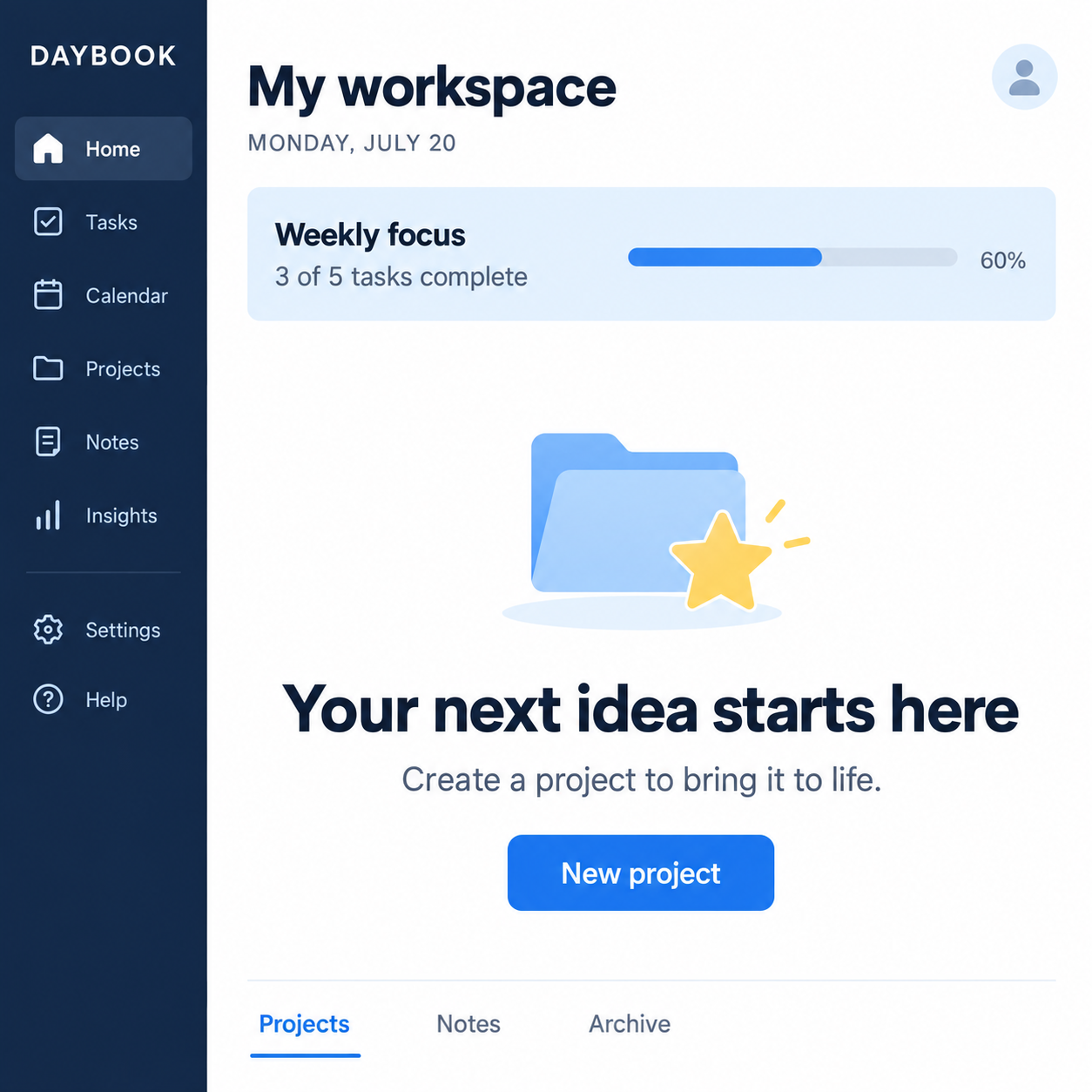
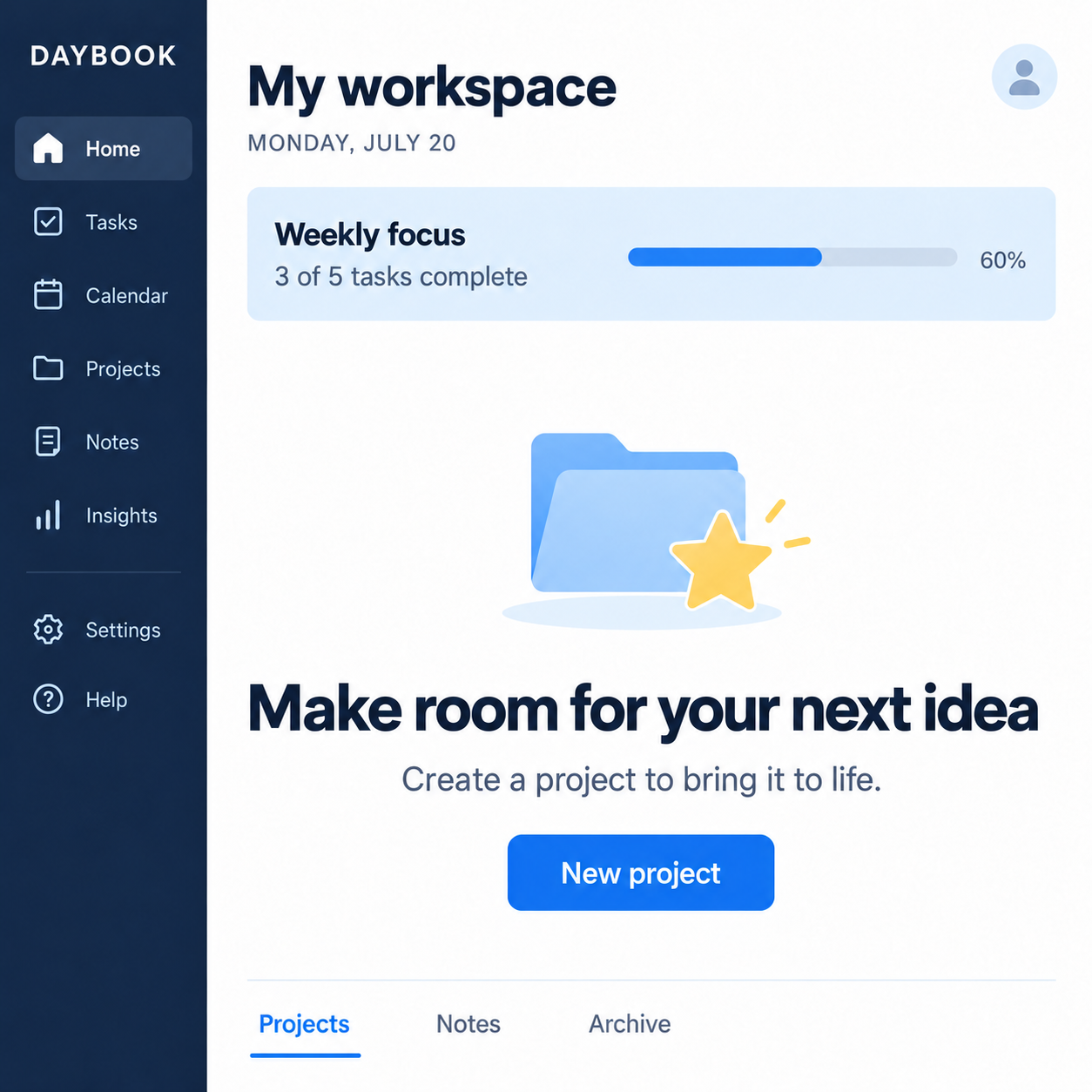
Change labels, headlines and demo copy in screenshots without recreating the screen. Edit JPG, PNG or WebP captures while matching the original font style, size, color and spacing.

Help

Edit the words. Keep the image.

Drag and drop an image. Text is detected automatically.

PNG, JPG or WebP · up to 10 MB
No image handy?

Update screenshot text for your next demo.

Update demos and tutorials

A button label changed after you captured the screen. Replace it in the screenshot you already have for a product demo, help article or presentation.

Keep the surrounding interface

Select only the words you want to replace. Icons, nearby labels and interface details outside the selection stay unchanged, while the replacement follows the existing text style.

Work from a finished screenshot

You do not need the app’s design file or the original font installed. Start with the original capture, allow room for longer wording and compare thin text at 100% zoom.

From upload to finished image

How to edit text in a screenshot

01

Upload and select text

Upload a JPG, PNG or WebP. Click detected words, or draw a box around the text you want to change.

02

Enter the new words

Type the exact replacement. Add another change for any other words you want to update.

03

Compare and download

Apply your changes, compare the result with the original and download a full-size PNG without a watermark.

Screenshot editing FAQ

How do I edit text in a screenshot?

Upload the screenshot or try the screenshot example. Click detected text or draw a box, enter the replacement and apply the edit. Compare the result with your original, then download the PNG.

Will the replacement match the original screenshot font?

The editor uses your screenshot to match the font appearance, size, color and spacing. You do not need a font file. Exact matching can vary, especially for tiny letters or unusual fonts, so check the result at native size.

Will buttons, icons and other text stay unchanged?

Everything outside the selected areas stays unchanged. Leave nearby icons and borders outside your selection. If a longer label needs more space, adjust the box before applying the edit.

Can I change several labels in one screenshot?

Yes. Add a separate change for each label and enter its replacement. Submit them together as one image generation for 1 credit. Previewing and downloading the result do not use extra credits.

What if the screenshot text is not detected?

Draw a box around the word or sentence and enter your replacement. Current text is optional for replacement. Automatic text detection and retrying detection do not use an editing credit.

Can I edit screenshots for demos and documentation?

Yes, using images you own or are allowed to edit. Make illustrative changes clear to your audience. Do not fabricate private messages, payment proof or other misleading evidence.

Which screenshot formats are supported, and can I try it free?

Upload JPG, PNG or static WebP screenshots up to 10 MB. Try 3 edits without signing in. Downloads are watermark-free PNG files at the original dimensions; save them within 24 hours of starting an edit.

Try 3 free edits without signing in. Compare credit packs and billing details →

Your image. The words you want.

Fix the typo, update the offer or translate the headline. Start with 3 free edits — no sign-in needed.